
Why Figma? Why Now?
If you’re stepping into design for the first time, you’ve probably heard Figma mentioned everywhere. That’s not hype — it’s actually practical. Figma runs in your browser, which means no installation headaches. You can collaborate with teammates in real-time, and everyone’s working from the same file. No more “final-FINAL-v3-actualfinal.psd” chaos.
Here’s the thing though — Figma can feel overwhelming at first. There’s the canvas, the tools, the panels. But once you understand how it’s organized, you’ll realize it’s actually pretty logical. We’re going to break it down into pieces that make sense.
Understanding the Interface
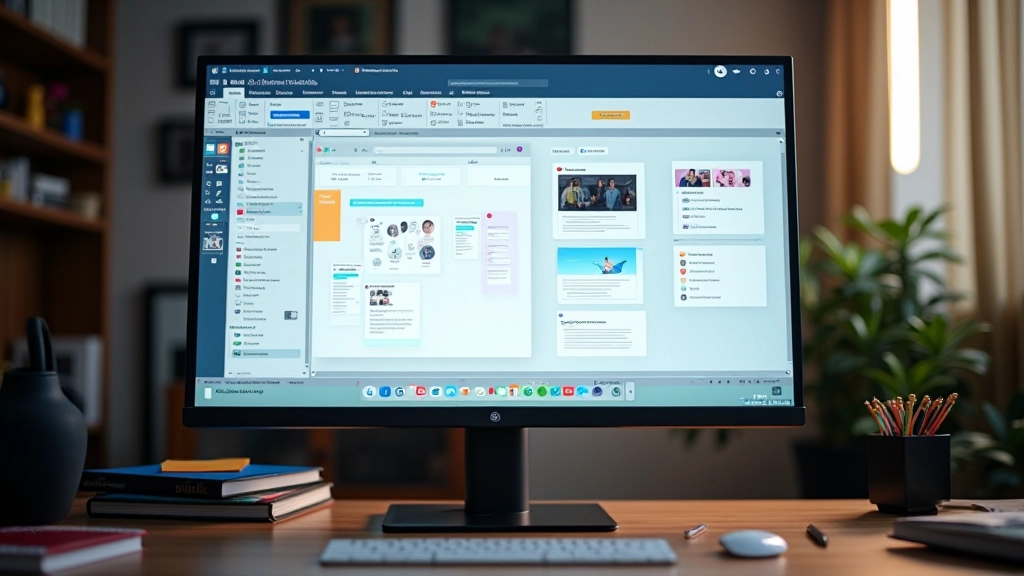
When you open Figma for the first time, you’ll see three main zones. On the left is the layers panel — that’s where all your design elements live in a list. In the center is your canvas, the big blank space where you’ll actually design. On the right is the properties panel, showing details about whatever you’ve selected.
The toolbar at the top? That’s your toolkit. You’ve got selection tools, shape tools, text tools, and more. Most of what you’ll do starts here. The shortcuts matter too — once you memorize a few (like V for the selection tool, T for text, R for rectangles), you’ll move way faster. We’re talking 2-3 weeks before they become muscle memory.
Pro tip: Don’t try to memorize every tool right away. Focus on selection, rectangle, text, and the pen tool first. Those four tools will let you create 80% of what you need.


Creating Your First File
Start simple. Don’t worry about creating the perfect design. Just create a rectangle, change its color, duplicate it a few times. See how things behave. You’ll learn more by doing than by reading instructions.
When you’re ready, try adding text on top of a shape. Group them together. See what happens when you resize the group. This is how you’ll build actual designs — small pieces combined into larger layouts. The workflow is: create element modify it combine with other elements organize into groups build your design.
One thing we see beginners struggle with — they think they need to make everything perfect immediately. You don’t. Rough sketches are fine. That’s literally what design files are for. Iterate. Change colors. Move things around. It’s free to experiment.


Essential Tools You’ll Actually Use
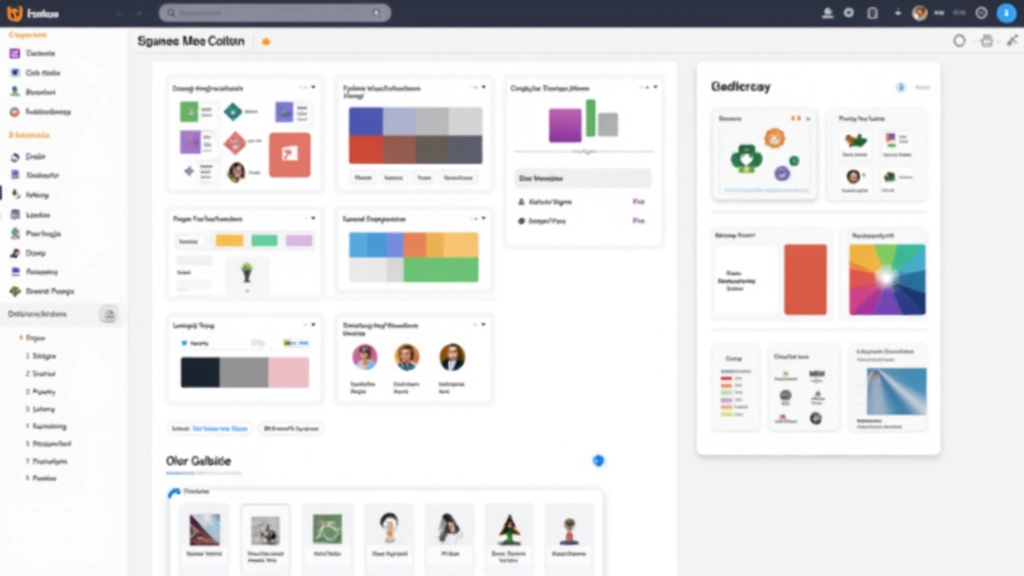
Let’s be honest — Figma has tons of tools you won’t need for months. Here’s what you should focus on first:
The Selection Tool (V)
Your bread and butter. Move things, resize them, edit properties. You’ll use this constantly.
Shapes (R for Rectangle)
Rectangles, circles, lines. Most designs are just shapes arranged well. Master these first.
Text Tool (T)
Add words to your designs. Control fonts, sizes, colors. You’ll spend time here perfecting typography.
Pen Tool (P)
Draw custom shapes and paths. This takes practice but unlocks precision design work.
Your Next Steps
You’ve got the foundation now. Here’s what we recommend: spend this week just playing around. Create a new file, draw some rectangles, add text, change colors. Don’t follow a tutorial — just explore. You’ll learn faster by clicking things and seeing what happens than by memorizing every feature.
After that, start with actual projects. Design a simple business card. A landing page mockup. A mobile app screen. Real work teaches you way more than theory. You’ll hit roadblocks, Google them, and suddenly you’ll understand a feature you never would’ve found on your own.
The Figma community is huge and helpful too. If you get stuck, someone’s probably solved that problem before. But honestly? You’re ready now. Open Figma. Create a file. Start designing.
Educational Information
This guide is educational material designed to help beginners understand Figma’s interface and fundamental features. Individual learning outcomes may vary based on prior experience, practice frequency, and specific use cases. This content reflects best practices and common workflows, but isn’t a substitute for official Figma documentation or professional design training. For comprehensive training and certification, we recommend exploring formal courses and Figma’s official resources.